One-click installation
Note: the system runs on a MySQL database and a Tomcat service, and supports PaaS / SaaS deployment.
If neither MySQL nor Tomcat is installed on the operating system,you can perform the quick one-click installation directly: one-click installer download, one-click installation demo video
If you already have a MySQL database or a Tomcat service, follow the steps below:
Installing the MySQL database
MySQL download: https://www.mysql.com/downloads/
Installing the Tomcat service
Tomcat download: http://tomcat.apache.org/
Extra library files required by the platform: download jlibs.rar, then unzip it into Tomcat's lib directory.
Installing the system platform
Download: http://downloads/
Configuration before the first sign-in
To protect developers' rights and keep the system easy to extend — for example when configuring SaaS or PaaS — the platform provides account-set creation and personalized configuration.
1. Creating an account set
First create a database (schema) in MySQL: one account set of the platform corresponds to one schema,
and the database name can be anything you like;
On the system server, open:
http://localhost:port/MESA/setdbp.html,
where port is 8088 by default for the one-click installation, or the port of your standalone Tomcat.
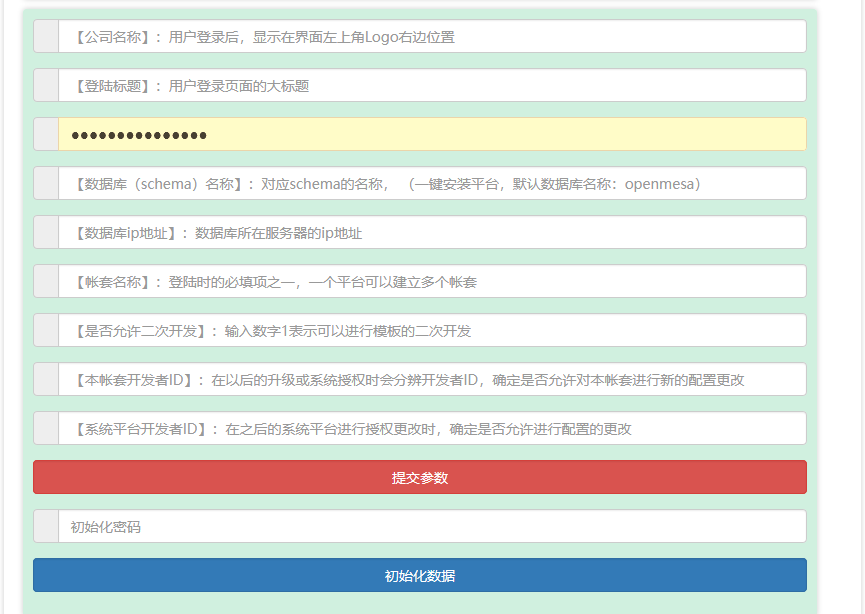
Fill in the corresponding fields:
[Company name] after signing in, it appears to the right of the logo in the top-left corner,
[Sign-in title] the main title of the sign-in page,
[Database connection password] the password of the corresponding schema,
[Database (schema) name] the name of the corresponding schema
(default database name for the one-click installation: openmesa)
[Database IP address] the IP address of the server hosting the database,
[Account-set name] one of the required fields at sign-in; a platform can host several account sets,
[Allow secondary development] enter the number 1 to allow further development of templates.
[Developer ID of this account set] used in later upgrades or system authorization to identify the developer and decide whether new configuration changes are allowed for this account set,
[Platform developer ID] used when the platform authorization is changed later, to decide whether configuration changes are allowed.
Click to finish the account-set configuration.
2. Initializing the account set
Click to initialize the account set in the database.
Administrator sign-in:
Administrator sign-in requires the account-set name, user name: admin, password: admin, address:
http://server IP:port/MESA/
where port is 8088 by default for the one-click installation, or the port of your standalone Tomcat.
The administrator must change the password at first sign-in!
Note:
the admin account is normally used for system configuration and development permissions; its business permissions can be disabled, and the application platform can grant business permissions and roles to other accounts, which makes both development and daily use convenient.